
BIOS/CMOS Battery (10 pcs)
$39.00
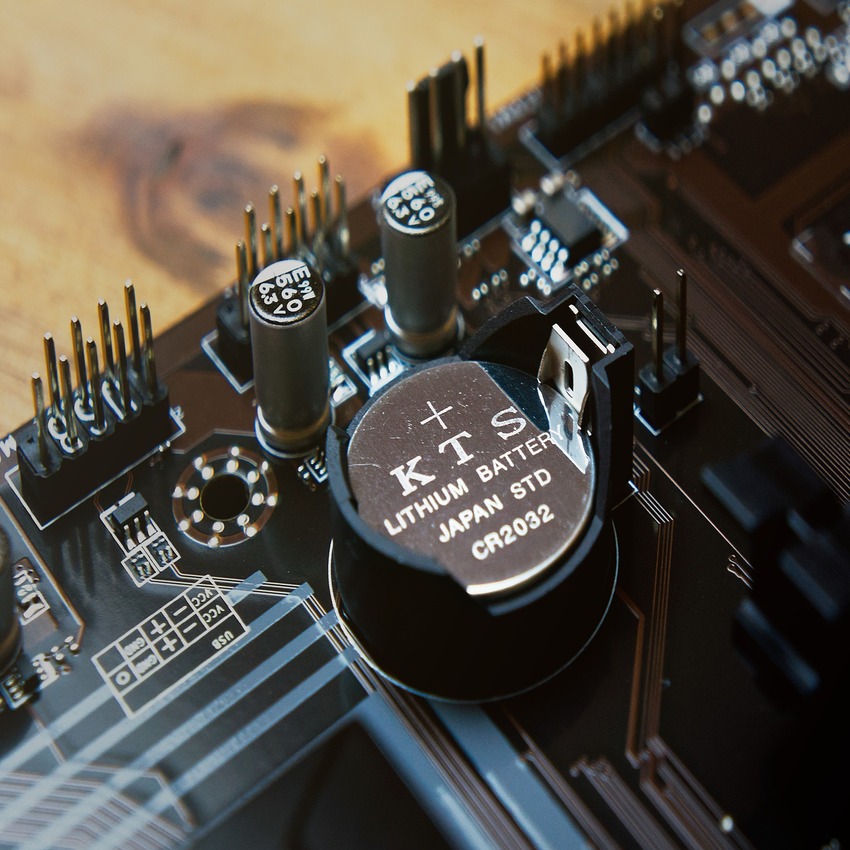
The BIOS/CMOS battery is a small coin-shaped power source on the motherboard that maintains essential system settings, such as time, date, and hardware configurations, even when the computer is powered off. Without it, your computer may reset settings every time it restarts.
Every computer, whether it is a powerful gaming desktop, a business laptop, or even an older office PC, relies on many parts working together. One of the smallest but most essential components is the BIOS/CMOS battery. Although it looks like a tiny coin cell, this battery has a big role in ensuring that your computer remembers its important system settings even when the main power is off. Without this small but crucial battery, your computer may lose its time, date, and even boot settings every time you turn it off.
In this detailed guide, we will explore everything about the BIOS/CMOS battery—what it is, how it works, why it is important, signs of failure, how to replace it, and why every computer owner should be aware of this component.
What is a BIOS/CMOS Battery?
The BIOS/CMOS battery is a small lithium coin-cell battery (commonly a CR2032) located on the motherboard of a computer. It powers the CMOS chip (Complementary Metal-Oxide Semiconductor), which stores the system’s BIOS (Basic Input/Output System) settings.
BIOS: The firmware that initializes hardware components and loads the operating system when you turn on your computer.
CMOS: A small memory chip that stores system configuration details like boot sequence, time, date, CPU settings, and hardware preferences.
Together, the CMOS chip and the battery ensure that your computer always remembers its configuration settings, even when the computer is completely shut down and unplugged from any power source.
Why is the CMOS Battery Important?
The CMOS battery plays a vital role in everyday computer operations:
Maintains Date and Time – Without it, the system clock would reset every time you power down your PC.
Stores BIOS Settings – Information like boot priority, CPU frequency, voltage control, and hardware detection are stored in CMOS.
Keeps System Stable – Ensures that your PC starts up smoothly without prompting you to re-enter settings.
Supports Security Features – Some BIOS setups use passwords stored in CMOS, which would be lost without battery power.
Lifespan of a CMOS Battery
On average, a CMOS battery lasts between 5 to 10 years, depending on the quality of the battery, how often the system is unplugged, and environmental conditions. If you use a desktop PC that is frequently connected to power, the battery may last longer because it is rarely called upon to provide energy. In laptops, battery usage is slightly higher due to frequent shutdowns and disconnections.
Signs of a Failing BIOS/CMOS Battery
When the BIOS/CMOS battery starts to fail, your computer will show noticeable symptoms. Common signs include:
Incorrect Date and Time – The most obvious sign is that your computer shows the wrong date and time whenever you restart.
BIOS Settings Reset – Your boot order, hardware settings, and fan configurations reset to default.
Error Messages at Startup – Messages like “CMOS checksum error” or “CMOS battery failure” appear during boot.
Sluggish Boot Process – The computer may take longer than usual to load the operating system.
Hardware Malfunctions – In rare cases, some hardware may not be detected correctly because of lost configuration data.
How to Replace a CMOS Battery
Replacing a CMOS battery is simple and can be done without advanced technical skills. Here’s a step-by-step guide:
Turn Off the Computer and Unplug It – Safety first; disconnect all power sources.
Open the Computer Case – For desktops, remove the side panel. For laptops, access the motherboard compartment.
Locate the Battery – Look for a small silver coin-shaped battery (usually CR2032) on the motherboard.
Remove the Battery – Use a small flat tool or gently press the retaining clip to release it.
Insert the New Battery – Place a fresh battery with the correct polarity (usually “+” side facing up).
Reassemble and Boot – Close the case, reconnect power, and boot up. You may need to reconfigure BIOS settings once.
Choosing the Right CMOS Battery
Most computers use the CR2032 lithium coin cell battery. However, always check your motherboard manual before replacing. Key points to consider:
Size and Voltage – CR2032 (3V) is most common, but some motherboards may use CR2025 or CR2016.
Brand Reliability – Choose trusted brands like Panasonic, Energizer, or Duracell for longevity.
Shelf Life – Lithium coin batteries usually have a shelf life of up to 10 years.
Common Problems After CMOS Battery Replacement
Sometimes, users face issues after replacing the CMOS battery. Typical concerns include:
BIOS Reset to Defaults – You may need to manually re-enter settings.
Password Protection Lost – BIOS password might be erased after replacement.
Boot Errors – Ensure the battery is properly seated if boot errors persist.
Myths About CMOS Battery
Myth 1: Without a CMOS battery, the computer won’t start.
→ False. The computer will still start, but settings will reset every time.
Myth 2: The CMOS battery powers the whole motherboard.
→ False. It only powers the small CMOS chip, not the entire motherboard.
Myth 3: Any coin cell battery works.
→ False. Only the correct type (usually CR2032) should be used.

Reviews
There are no reviews yet.